HOW TO USE FORMULASUITE CUSTOM FUNCTIONS IN YOUR SPREADSHEET
You can use FormulaSuite functions after installing the add-in and logging in with either your Microsoft credentials (recommended) or your FormulaSuite account. (You must be logged in to use FormulaSuite custom functions.)
Note: Please enable cookies in your browser when using the FormulaSuite add-in in incognito or private mode. The add-in will not function properly if cookies are disabled.
FormulaSuite functions generally work similarly to built-in Excel functions.Each function has a set of input variables separated by commas(","). A function includes both required and optional inputs. If you do not provide a value for an input, The formula will use a default value whether the input is required or optional.
Please refer to the function syntax for details on a specific function. Ensure that the format and value types of each input match the specified requirements. Below is additional information on input types, methods for providing array and number inputs, and the types of outputs generated by our custom functions.
How to write a formula Using our custom functionsYou can add a FormulaSuite function in one of two ways:
-
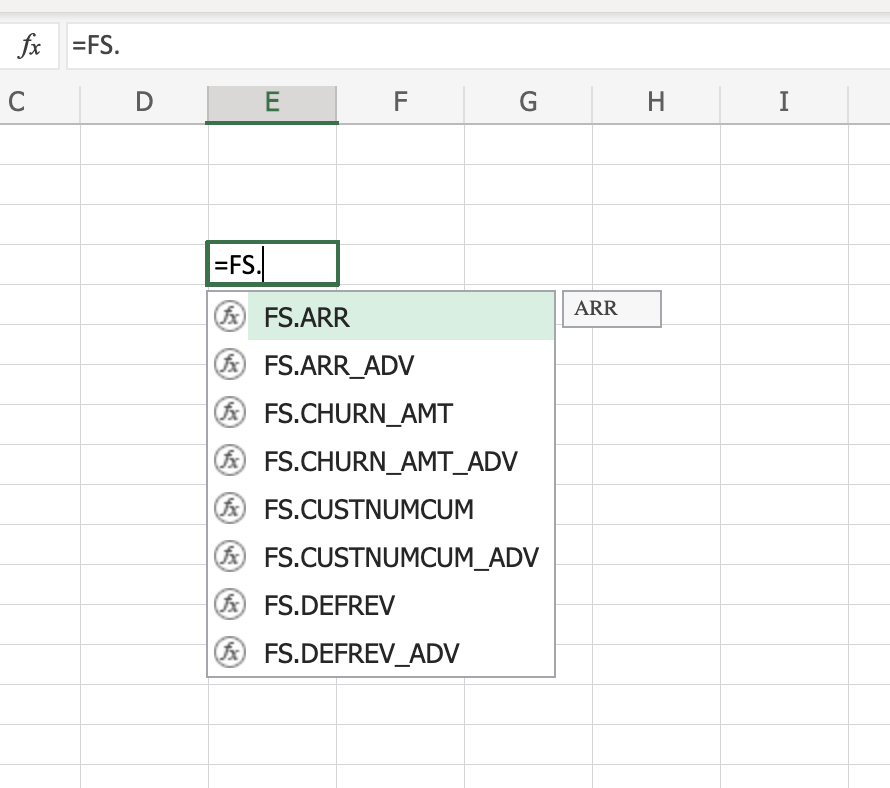
Enter a custom function directly into an Excel cell by starting with a prefix ‘=FS.’ ,Followed by the function name and its inputs.
For example, to calculate Monthly Recurring Revenue (MRR), you can enter the following formula and provide the necessary inputs in a cell:
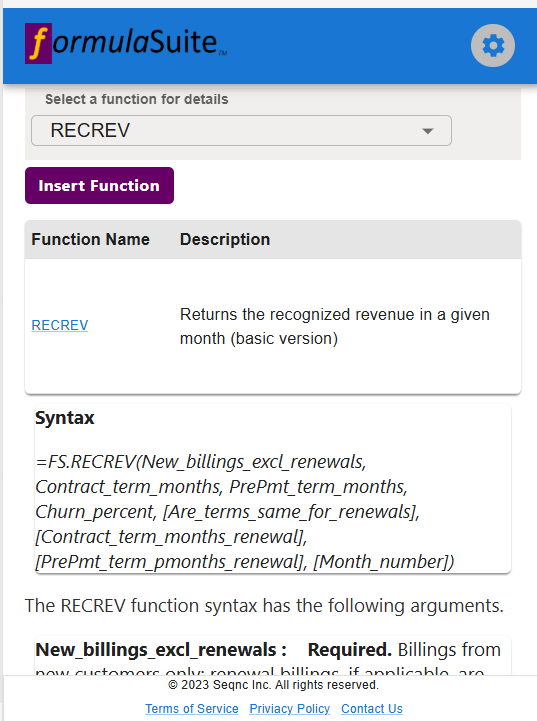
=FS.MRR(New_billings_excl_renewals, Contract_term_months, PrePmt_term_months, Churn_percent, [Are_terms_same_for_renewals],[Contract_term_#months_renewal],[PrePmt_term_#months_renewal], [Month_number])Note: Required inputs are not enclosed in square brackets [ ], while optional inputs are.
- Alternatively, you can use the 'Insert Function' button on the 'Function details' page. To access this page click 'View & Select Function' button in the FS dashboard.
Inputs in a FormulaSuite custom function can be of the following types:
- A number, either enter a number directly in the formula or provide a cell reference;
- An array, select a range of cells in a row containing the input data or type the cell range directly in the formula;
- A number or an array;
- Select an input only from the list of allowed values. This can be a numeric value representing a choice from predefined options, or a TRUE/FALSE value, depending on the function and the specific input.
For a function input of array type:
- Select input data from one or more columns in a single row. For example, select cells A1:M1 if the input data spans 12 months starting from cell A1. Do not select multiple rows for an array input.
- Alternatively, you can type the cell range directly into the formula. For example, type A1:M1 if the input data spans 12 months starting from cell A1.
For a function input of the number type:
- Enter the number directly into the formula. For example, type .05 (or 5%) if that’s the value you want to use for the calculation.
- Alternatively,reference a cell that contains the desired value. For example, use A1 if cell A1 contains the value you’d like to use . The function will automatically recalculate whenever the value in that cell changes.
The result of a FormulaSuite custom function can be a single value or an array, depending on the function and the user inputs.
The output is displayed in the cell where the formula is entered (for a single value) or starting from that cell across a row (for an array of values). Note: you will see an error if the output array overlaps with existing content in any of the destination cells.
When an array is provided as input, an output array of the same size is displayed by default. Specify the optional “Number_months_display” input if you want to display results for a specific number of time periods. Use the optional “month_number” input to return the result for a specific period. Note, the month_number input overrides all other options.
|
|