FormulaSuite Taskpane
Click on the 'Open Task Pane' icon located in the ribbon under the FormulaSuite tab. This task pane allows you to interact with the add-in and perform the following tasks:

-
Dashboard
- Quick overview of using the Formulasuite application.
- Navigate to the 'View & Select Functions' view.
- Download the example template file (Use this to get familiar with the custom functions).
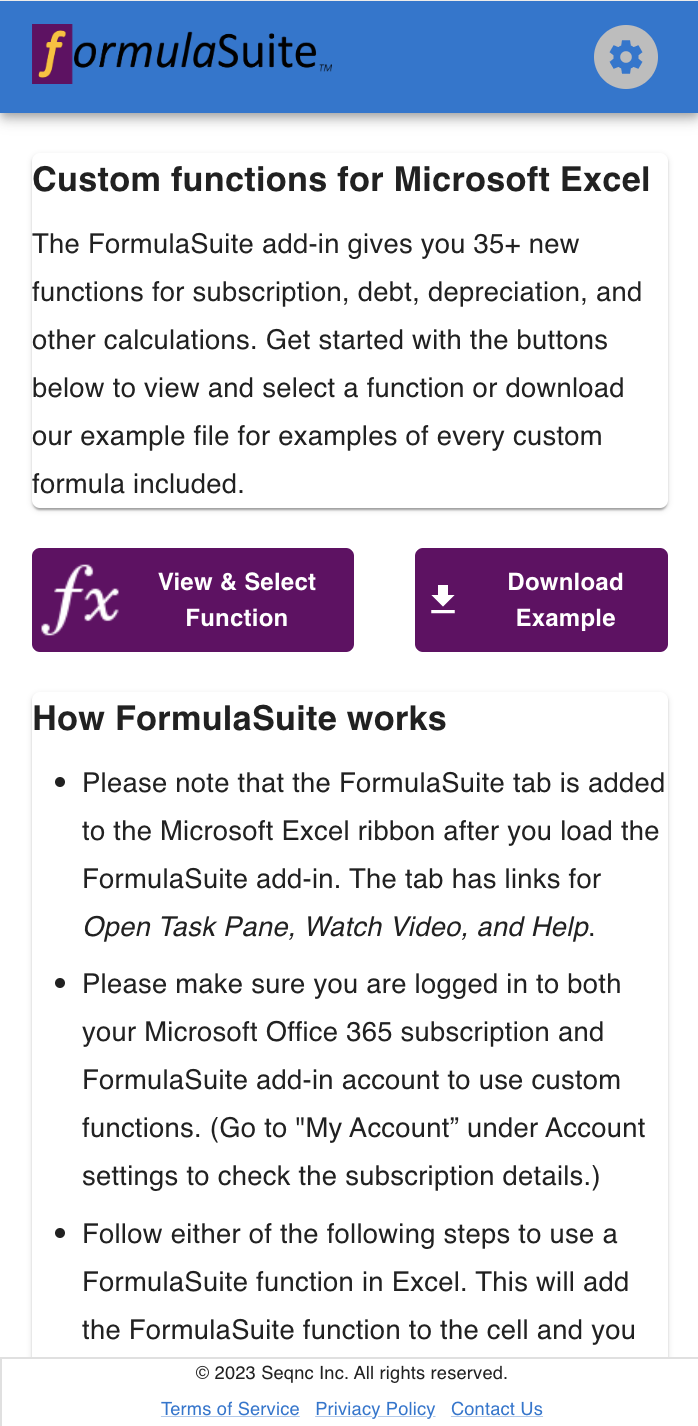
FormulaSuite Dashboard -
Account settings
- Sign Up for the FormulaSuite application.
- Login / Logout / View account details.
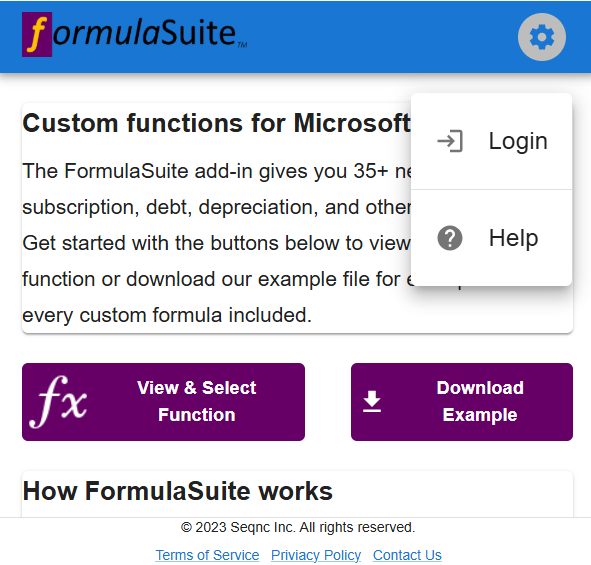
FormulaSuite Account Settings 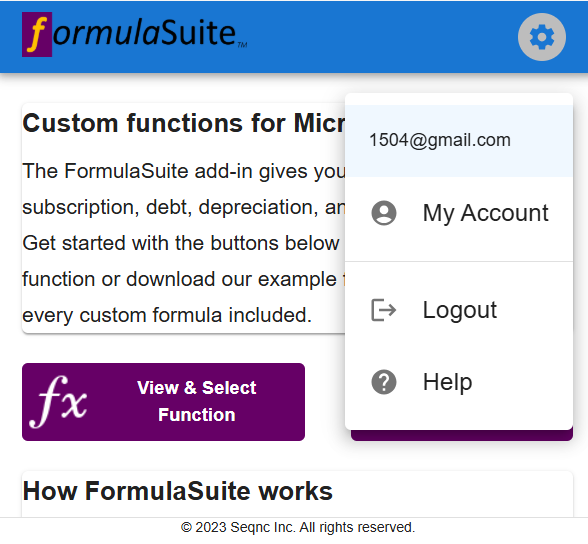
FormulaSuite Account Settings -
Custom functions details
- Select a function to view its syntax and parameter details.
- Use the 'Insert Function' button to insert the selected function into the active cell. Alternatively, you can type the function name directly into an active cell using the prefix '=FS.' .
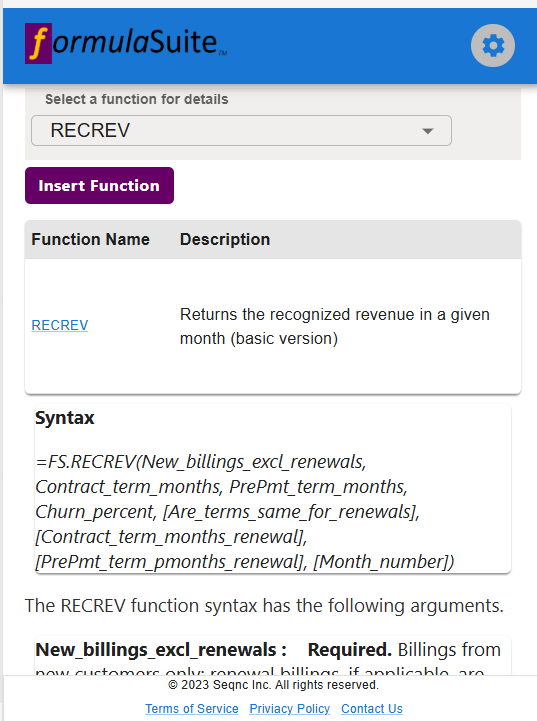
FormulaSuite Task Pane